Set own preferences - My profile
You can change own preferences, eg. language, notification, 2FA settinsg, etc. in My Profile (User Profile) menu item.
There are 3 TABS in popup:
- Personal details
- Notification / warning
- Others
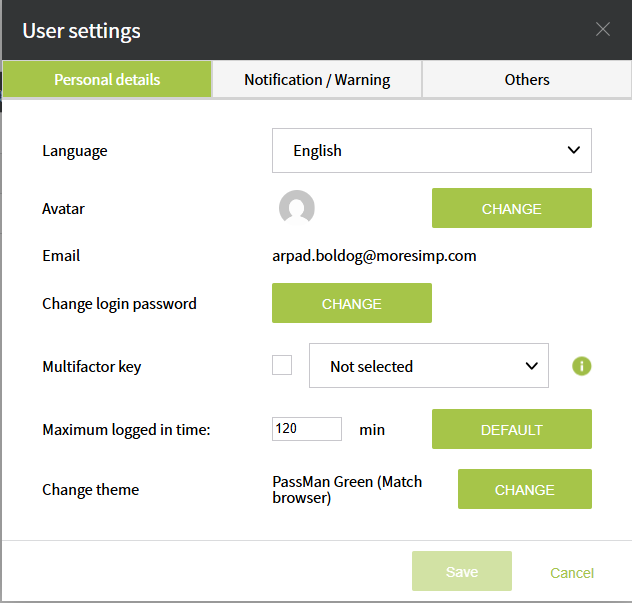
Personal details
You can edit the next settings:
- Language
- Avatar
- Password (Change own password for login to Passman - only with PassMan local user)
- Multifaktor key
- Maximum logged in time
- after this value time you will be kicked off automatically, and you have to login again
- Theme
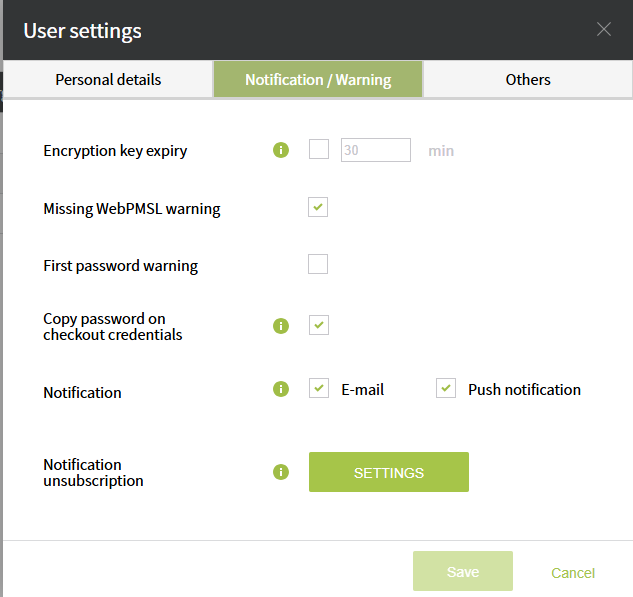
Notification / warning
You can edit the next settings:
- Personal encription key expirity
- If you entered your personal encryption key after logging in, it will be stored in memory for the time set here.
- After the specified time expires, you will need to enter it again.
- If no value is specified here, the personal encryption key will only be deleted from memory upon logout.
- Missing webPMS warning
- If you have no webPMSL browsre extension is not installed on your machine, than you get a notification or not.
- First password warning
- Copy password on checkout credentials
- Set checkbox to copy password to clipboard when you checkout credentials (password).
- Notification channel
- Set checkbox(es) to choose your communication channel to get PassMan notifications.
- Registrated devices under push notification
- When you log in from a device (web browser, iPhone, iPad, Android Phone, etc.), we save the device data in PassMan.
- Based on the saved data, we can send a message to the given device.
- If you no longer want to receive messages on a particular device, you can delete the device data here.
- The deletion only affects the sending of messages; we do not delete the software installed on the given device (e.g. iPhone).
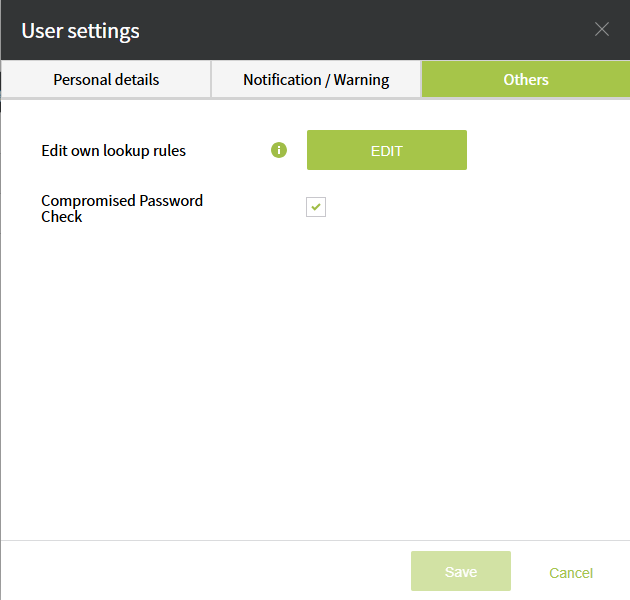
Others
You can edit the next settings:
- Edit own lookup rules
- You can edit or delete the page descriptors saved with the extension here.
- Compromised Password Check
- Check whether the password to be saved has been compromised by querying the pwnedpasswords.com service.
- Your password never leaves your device; only the first 5 characters of its hash are sent!