Manage 2FA login to PassMan
Two-factor authentication
Two-factor (two-step, 2FA, multifactor) authentication is a method that confirms the claimed identity of a user with a second parameter (piece of data) besides the password. It needs two different pieces of data for access: something the user knows (the password), and something the user has (the two-factor, or multifactor, code).
With the two-factor code, a sign-in helper app (an authenticator, for example Google Authenticator) generates a code that can be used for 30 seconds (a 6-digit number, a PIN code), which you enter during sign-in. Details: Wikipedia.org
Warning
If two-factor sign-in to PassMan is turned on for an administrator, they can only sign in this way until an administrator turns it off. If there is no other administrator in the system, access to PassMan is lost.
Setting up multifactor authentication for any user
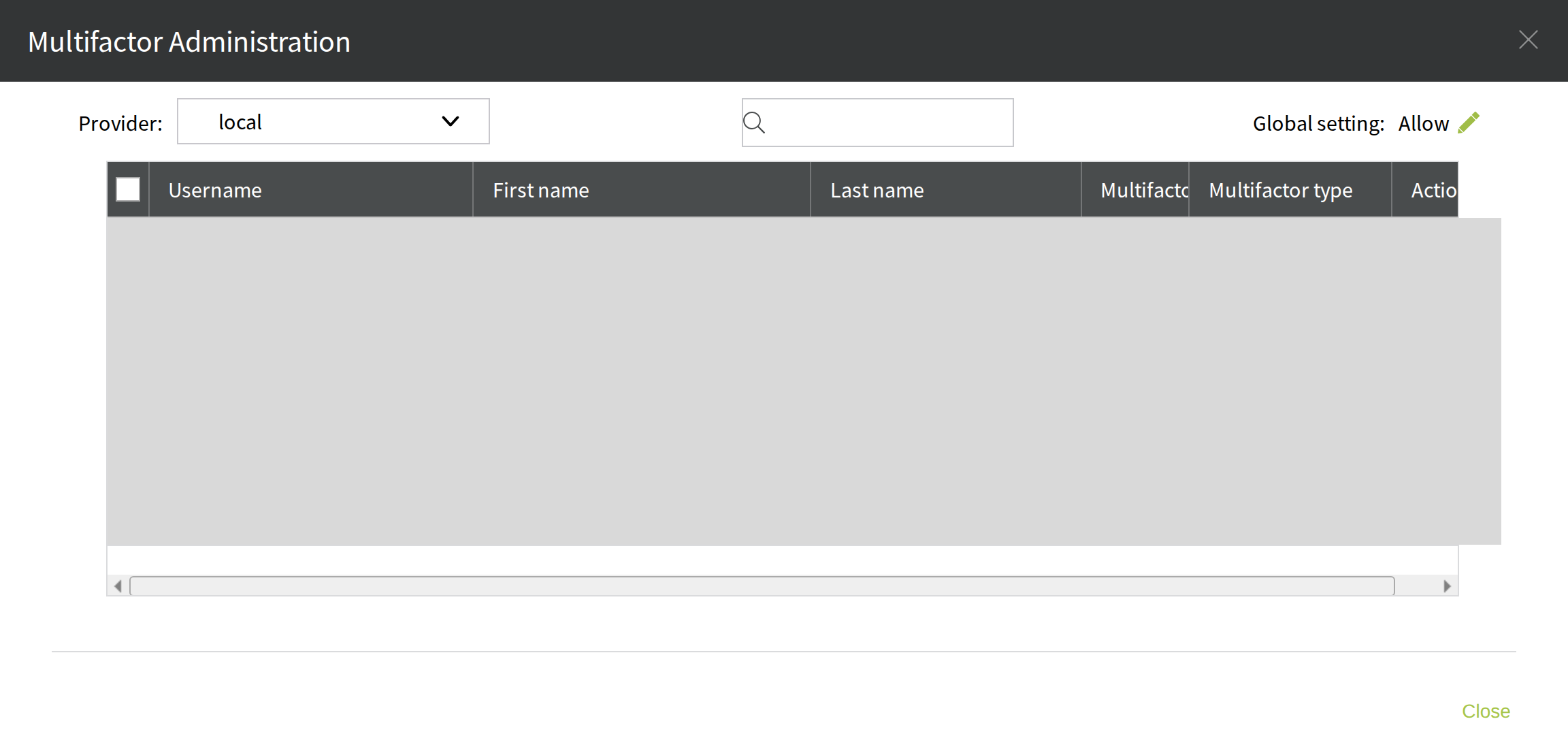
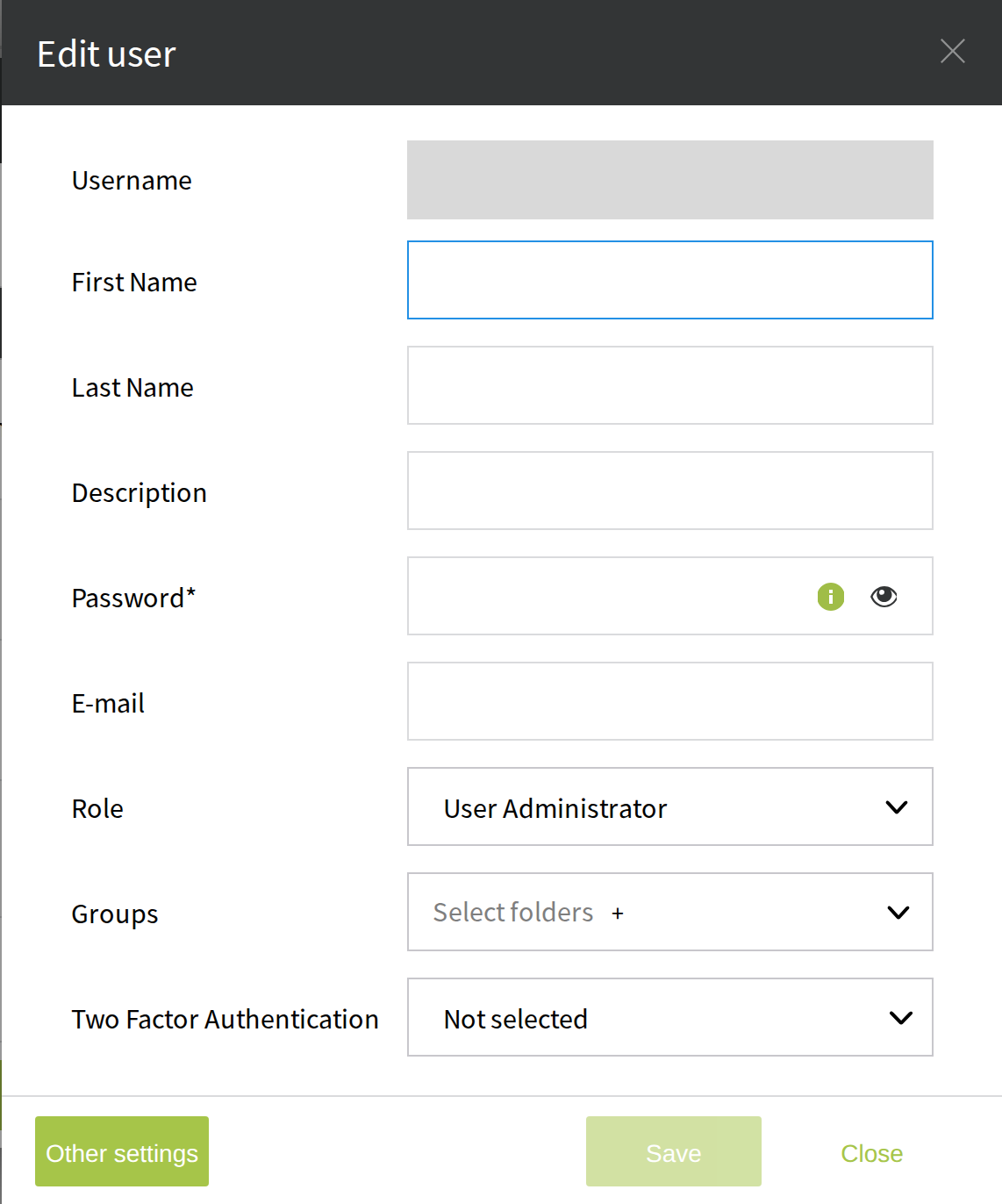
To set up this function for other users, you need the User Administrator role. You set it in User administration, when you create a new user or edit a user, and in the Multifactor Administration window (the Multifactor button in User administration).
In the user's dialog, set Two Factor Authentication.
In the Multifactor Administration window, in the Actions column, select the  icon to delete the two-factor (2FA) code created earlier for that user. The next time the user signs in, they get a new multifactor code, and they sign in with that from then on.