
Session Management Settings
Activation
The Session tab is visible in PassMan if the license required for remote access is active in Padmin. A new tab called Session then appears on the main page.
License
To use session management, install the appropriate license in Padmin. Go to System settings > License, paste the license into New license or select it in New license file, and then select SAVE.
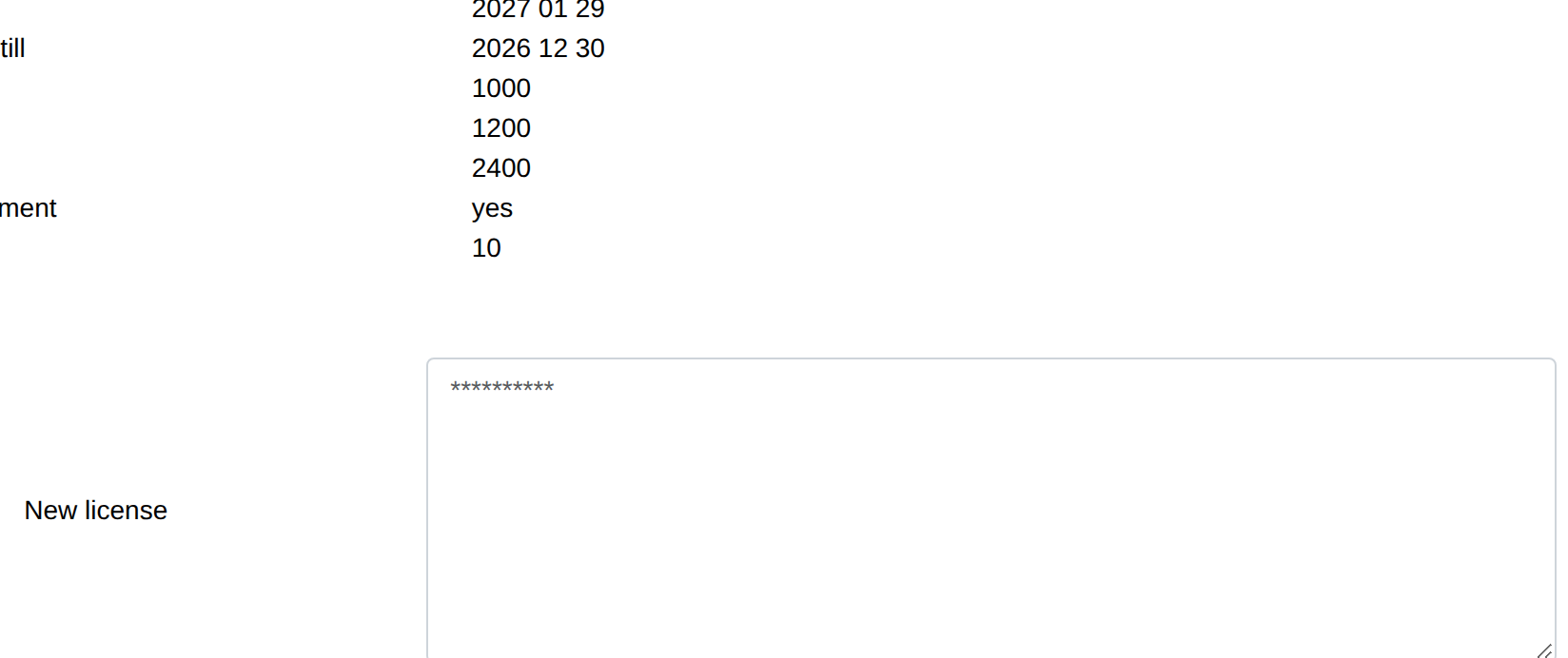
 Before you select SAVE, you can check the license with CHECK. If an error message appears, please contact the person in charge.
If the setup is successful, the Padmin Dashboard shows the following:

Enable session management
Go to System settings > Session management.
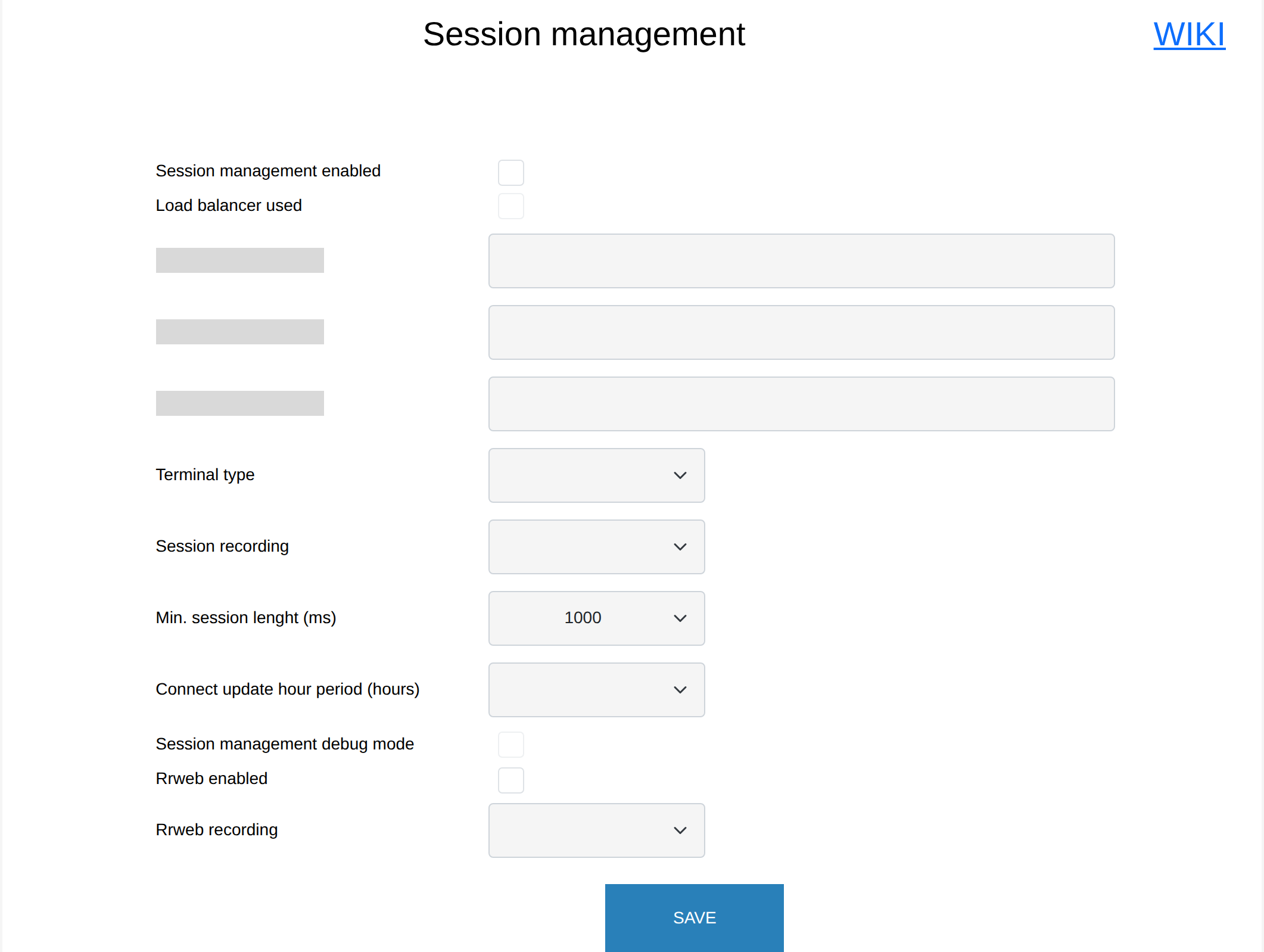
- Select Session management enabled to turn on the function.
- Select Load balancer used if the cluster uses a load balancer.
- For each node, enter the node's FQDN in the field named after the node's address, without the protocol prefix.
- Terminal type sets how sessions can be started: SM, from the PassMan web interface; PMSL, with the downloadable software; or ANY, with either.
- Session recording is YES, NO or BY ACCOUNT. With YES, a recording of each active session is saved.
- The screen also has Min. session lenght (ms), Connect update hour period (hours), Session management debug mode, Rrweb enabled and Rrweb recording.
Select SAVE to apply the settings.
Create a device: Windows | Linux | Web
Downloadable software: Windows | Linux | Web 1-click sign-in: LINK
If the setup is successful, the Padmin Dashboard shows the following:

More information on the Dashboard
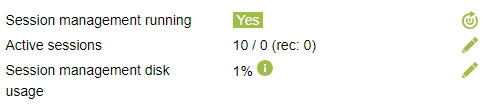
- Active sessions shows the number of started and active sessions.
- Session management disk usage shows the storage space used, as a percentage.
Restart
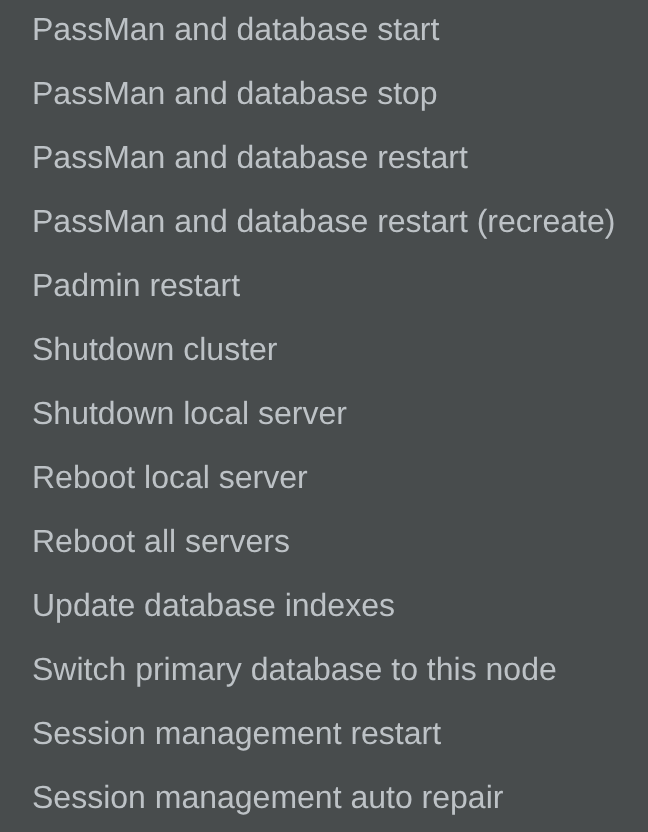
To restart session management, go to Maintenance > Session management restart. You can also restart it with the  icon on the right side of the remote connections row. The menu also has Session management auto repair.
Device settings
When you create or modify a device, you can set its terminal type and whether its sessions are recorded. The image below shows this part of a device's settings.
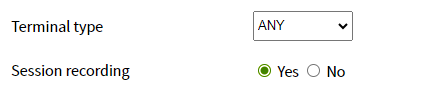
- SM starts a web-based session, through PassMan remote access.
- PMSL starts the session with the downloaded software.
- ANY lets you choose how to start the session.
- Session recording: with Yes, a recording of the active session is saved.